Showing posts with label elementary. Show all posts

Thursday, February 12, 2015

Introducing ePad - A text editor written in Elementary

I have been working on a number of small tools for the up coming Bodhi Linux 3.0.0 release (find the latest release candidate here) and one than I am working hard to get up to snuff is our text editor ePad. Previous versions of Bodhi Linux has always included the GTK text editor Leafpad by default so my initial release of ePad has the goal of simply covering the same features as Leafpad at the bare minimum.

As of today my ePad source is nearing a 1.0.0 release and the goal of this post is to let folks outside of Bodhi know it exists and that it is ready for them to give it a try. ePad in its current form supports most all of the features you would expect from a text editor: Cut, Copy, Paste, Undo, Redo, Find, Replace, and displaying Line Numbers. On top of these it also supports opening multiple files in the same application window.

You can find the ePad source on GitHub here and you can report issues you encounter on the GitHub issue tracker here. Please note that ePad requires:

Finally a few screenshots of ePad in a couple different elementary themes:


Cheers,
~Jeff Hoogland

Sunday, February 1, 2015

Elementary Extensions for Python-EFL

For those who are unaware the Enlightenment Foundation Libraries and Elementary are the tools that power the Enlightenment desktop and a growing number of other applications. To learn more about getting started with Elementary and python you should check out the full API reference here, the examples on git, or stop by #e.py on Freenode.

I have been working on a number of small applications using Elementary. While building these applications I found myself reusing a few of the same gadgets in different places, so I had the idea others might find some of them useful as well.

Thus elmextensions was born. You can find the latest source code for elmextensions on GitHub here. As of this post there are currently four different elementary objects in elmextensions:

SortedList


This first object is similar to a "spreedsheet" or "tree" type widget. It creates a list of objects that are sortable by clicking on the header for a given column. The elements in the widget can be any Elementary object. 

EmbeddedTerminal


This widget is a very basic terminal. Accepts text input/out and runs the command entered in the input line when execute is pressed. More complex things such as ncurses applications will not work.

AboutWindow


Creates a standardized information window for your application that is easy to fill in with your own information.

FileSelector


Now I am sure some people will be slightly confused because there already exists a file selector widget in elementary. The problem is that the default file selector is minimal by design and does not have features such as displaying Bookmarks, sorting the data, or displaying file size. This widget does all of these things.

There are examples of how to utilize each of these widgets in the top level of the GitHub repo. If you have any questions about how to utilize these widgets feel free to open a thread in the elementary section of the Bodhi forums. If you encounter any issues please open a bug report on GitHub.

Cheers,
~Jeff Hoogland

Tuesday, March 18, 2014

Enlightenment Foundation Libraries Application Round Up

Most folks who have been around Linux and/or open source software for awhile are aware of what GTK and QT are - tool kits for building applications. Something that not as many may be aware of is that there is another open source tool kit out there - the Enlightenment Foundation Libraries. These serve as the building blocks not only for the Enlightenment desktop, but also for a growing number of applications.

Today I am going to provide a quick round up of applications written utilizing the Enlightenment Foundation Libraries.

System Tools -

Terminology brings "fun" back to the terminal while still being plenty practical. Supporting split panes and slew of other nice features it is stable and fast.


A simple, but functional, lightweight GUI front end for the Connman connection manager. Supports wired and wireless connections.


A simple graphical tool for the sudo command. Supports the same functions as similar tools such as gksudo. Also supports direct integration with other python EFL applications.


A tool for displaying information about the hardware in your computer. Supports exporting the formation collected to a text file.


eCcess provides a few different functions. It is a GUI for managing users on the current OS and assigning/removing group permissions. It can change the current date and time and finally it provides a simple task manager.


Similar to gDebi, eDeb allows the user to install Debian package files using a GUI.


A tool for installing package updates on apt-get based systems.


Multimedia Applications - 


Utilities -


Games -


Escape from Booty Bay (Angry Birds Clone)


Wrapping Up -

Hopefully I've introduced you to some new wonderful applications today! Most of this software is fairly new though, so sadly many of them will not have packages in many Linux distribution's repositories. You can however find every application listed here in the Bodhi 3.0.0 repos (or you can add this repo to your Ubuntu 14.04 install).

If you know of an awesome EFL based application that I haven't included here today - please let us know what it is - and where to find it - in the comments below.

Cheers,
~Jeff Hoogland

Saturday, March 15, 2014

Introducing eepDater - GUI for Apt-Get Package Updates

One of the things I am working on for our Bodhi 3.0.0 release this summer is a simple GUI system update tool written in Elementary and the Enlightenment Foundation Libraries. Today I would like to share an early version of this tool I am calling eepDater (pronounced epp-date-er), which is written in python utilizing the EFLs.

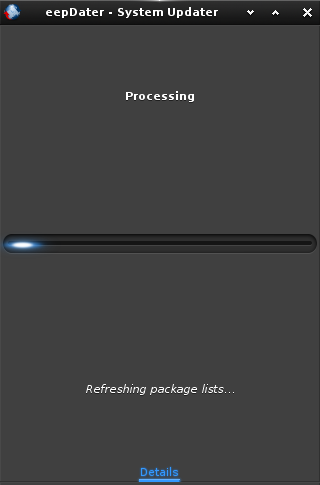
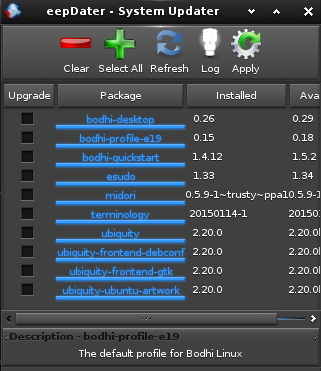
eepDater provides a very simple, but functional, GUI for selecting which package updates you'd like to install on your computer via apt-get:


You can simply check the box for the updates you'd like to install and then hit the apply button. Hitting refresh will check for package updates:


One thing worth noting is that eepDater does not include any code for escalation of privileges for installing software. This means you should launch it with something such as eSudo.

If you are using at least Bodhi 3.0.0 you can install eepDater on your system with the command:

sudo apt-get install eepdater

For anyone else out there, you can find the eepDater source code on GitHub here.

Have any questions or suggestions feel free to drop them below! Keep in mind though this tool is intended to be simple by design.

~Jeff Hoogland

Sunday, December 22, 2013

eAndora - Pandora Internet Radio Client - 1.0 Release

At the start of this year I posted about eAndora, a Pandora Internet Radio client I was working on that is written in Python and Elementary. Today I'm happy to announce that eAndora is finally feature complete enough for me to stamp something as a "1.0" release.

You will always be able to find the latest eAndora source release on source forge here. If developmental code is more your preference you can always find my latest work on github here.

I've tested this release with the latest releases of the Enlightenment Foundation Libraries (1.8.3), Elementary (1.8.2), and Python EFL (1.8.0). It could very well work with previous releases of these things though - for best results always use the latest versions.

Screenshot Tour:

Login Screen

Main Window

Station Creation

Station Selection

If you have any questions feel free to drop a comment below. If you are a Bodhi Linux user the eAndora 1.0 release is currently in our testing repository and will move into the stable branch in January once the EFL 1.8.x series makes its way to stable.

~Jeff Hoogland

Friday, February 1, 2013

Tutorial 2: ELM Images, File Selector and Popups

This is the second post in my series on developing GUI applications in Elementary using Python. Today we are going to continue building on the Hello Elementary example I started in the first tutorial. In today's post I will only be covering the code that is different from our previous examples, so if you haven't looked that one over yet please take a moment to do so now.

You can find the full source code for all of today's examples here.

Example 3:
We are going to start off by displaying a static, pre-defined image in our GUI:


It only takes us 8 lines of actual code to create and display the above image in our program:

    #Creates an Image object that displays an image
    ic = elementary.Image(window)

    #Use the os module to get the current path to our .py file. Our image is relative to our .py We do this because it is best to use the absolute file path to images for the best results.
    location = os.path.dirname(os.path.abspath(__file__))

    #Tell our icon to auto-fill open space
    ic.size_hint_weight_set(evas.EVAS_HINT_EXPAND, evas.EVAS_HINT_EXPAND)
    ic.size_hint_align_set(evas.EVAS_HINT_FILL, evas.EVAS_HINT_FILL)

    #Here we set the image we want our icon to display
    ic.file_set("%s/images/logo.png"%location)

    #Optional, lets add mouse over text to our image
    ic.tooltip_text_set("Look a pretty picture!")

    #Lets show our icon
    ic.show()

    box.pack_end(windytax)
    #Pack our icon between our text and button
    box.pack_end(ic)
    box.pack_end(button)

In this example we utilize the elementary Image object to display our selected .png file.

Example 4:
Very rarely do we want to simply display a single image for as long as our program is running. So lets give the user the ability to change the image we display in our program:


Elementary has a built in FileselectorButton object that when clicked presents our user with a nice file selector GUI:


The new code to add this file selector button looks like:

    #Creates a "FileselectorButton" object. This is a button (just like we have created before) except that when it is click it automatically opens a file selector window
    fsb = elementary.FileselectorButton(window)

    #We can set the text of our fsb just like a normal button text
    fsb.text = "Change Image"

    #Tooltip for mouse over
    fsb.tooltip_text_set("Click Me!")

    #This tells our file selector window what to do when our user selects a file. The first argument is the callback function we want run and our second argument is our image object we want to change the display of
    fsb.callback_file_chosen_add(change_image, ic)

    #Show our button
    fsb.show()

    box.pack_end(windytax)
    box.pack_end(ic)
    #Pack our file selector button between our image and button
    box.pack_end(fsb)
    box.pack_end(button)

    window.resize_object_add(box)

    window.resize(300,300)

    window.show()

#Our fileselector callback. The file argument is the fileselectbutton object. The second argument is the full path to the file that was selected. The final argument is the image object we passed to this callback
def change_image(fsb, file_selected, image):
    #Check to make sure a file of some sort was selected. If nothing was selected file_selected will equal None type
    if file_selected:
        #These are the extensions we will allow our program to display
        validExtensions = [".png", ".jpg", ".gif"]

        #Use the os module to easily get the extension of our file
        fileName, fileExtension = os.path.splitext(file_selected)

        #If the extension is in our validExtenions lets check the image we are displaying!
        if fileExtension in validExtensions:
            image.file_set(file_selected)

Example 5:
Lets add one finishing touch to our application. If our user selects a file to display that doesn't have a valid image extension lets send them a popup telling them why the image displayed wasn't changed:


Showing a popup of this nature is fairly easy using elementary's Popup object. So the final edit to our code looks like this:

#This time we also pass the window object to our change image function. The reason for this is that our popup object needs a parent window object
def change_image(fsb, file_selected, image, window):
    if file_selected:
        validExtensions = [".png", ".jpg", ".gif"]

        fileName, fileExtension = os.path.splitext(file_selected)

        if fileExtension in validExtensions:
            image.file_set(file_selected)
        else:
            #if we have an invalid extension lets give the user a popup message telling them why the image didn't change

            #Create a popup message
            popup = elementary.Popup(window)

            #Set the title of our popup
            popup.part_text_set("title,text", "Invalid File Extension")

            #Set the text of our popup
            popup.text = "File %s has an invalid file extension of %s"%(fileName, fileExtension)

            #Create a button object
            bt = elementary.Button(window)

            #Set it's text
            bt.text = "OK"

            #Define a callback that is called when the button is clicked, lets pass our popup object to this call back so we can close the popup when the user presses OK
            bt.callback_clicked_add(bnt_close, popup)

            #Sets content for our popup. The first argument is an arbitrary name for the content piece and the second argument is the elementary object you would like displayed for the content
            popup.part_content_set("button1", bt)

            #Show the popup to our user
            popup.show()

#The callback for our popup's OK button. The first agurment is the button object itself and the second object is the popup we passed to it
def bnt_close(bt, popup):
    #Lets delete the popup so it goes away
    popup.delete()

Hope everyone learned something today! Have any questions feel free to drop a comment below or start a discussion on our user boards.

Resources for this Lesson:
~Jeff Hoogland

Tuesday, January 29, 2013

Tutorial 1: Hello Elementary

This post is the first in a series I am going to be publishing about using elementary and python to develop applications. The source code for all of the examples I am providing can be found in a GitHub repository here. Looking to get help with development? - We have started a programming focused section of the Bodhi Linux forums here. Other great resources for getting help are the Enlightenment devel mailing list as well as #e on freenode IRC. I've also added the python elementary API documentation to the Bodhi website here.

Example 1:
Since most people (myself included) learn best through examples, let's dive right into the code. To start, we are going to be creating a simple window that displays some text to us. It will look something like this:


Including my comments explaining what each line of code does, it takes us less than 50 lines of code to get the above window on our screen. Let's take a look (you can also find the source code for this lesson here):

#Import the elementary library so we can use it
import elementary

#Import evas, used for resizing things
import evas

#A function that creates and shows an elementary window
def hello_elementary():
    #Creates a "Standard" elementary window. The first argument is the name of our window. The second argument is the title displayed on the window bar
    window = elementary.StandardWindow("hello world", "Hello Elementary")

    #callback_delete_request_add tells our window what to do when it's "close" button is pressed
    window.callback_delete_request_add(lambda o: elementary.exit())

    #Content for our window. Creates a "Label" object which display text in our window. Whenever we create an elementary object we must provide a parent window as input
    windytax = elementary.Label(window)

    #Tells our label object to change size based on the size of our window
    windytax.size_hint_weight_set(evas.EVAS_HINT_EXPAND, evas.EVAS_HINT_EXPAND)
    windytax.size_hint_align_set(evas.EVAS_HINT_FILL, evas.EVAS_HINT_FILL)

    #Define what text our window should display
    windytax.text = 'Hello Elementary!'

    #If we want to see our object we need to tell it to be shown
    windytax.show()

    #resize_object_add adds our Label object "windytax" to the window
    window.resize_object_add(windytax)

    #resize takes an ordered pair as input for the size for our window, the dimenions are pixel by pixel
    window.resize(300,300)

    #Finally lets tell our window object to show up just like we did with our label
    window.show()

#Runs when our script is run
if __name__ == "__main__":
    #Runs our function which creates our window
    hello_elementary()

    #Starts an elementary event loop which displays all elementary objects we've created. Our code stays at this point until elementary.exit() is called
    elementary.run()

    #Once elementary is done running lets shut everything off to finish the application
    elementary.shutdown()

In this example we create two elementary objects: A StandardWindow and a Label. The StandardWindow as you can guess is the window we are creating, while the Label is a child object that we add to our window to display.

Example 2:
We want our application to do much more than just display text (most of the time). So let's go ahead and add a couple more objects to our Hello Elementary application. Let's add a button that closes our application:


The full code for this application can be found here. I will now highlight what is different from our previous example.

def hello_elementary():
    ...

    #Create an elementary button object
    button = elementary.Button(window)

    #Set some text for our button
    button.text = "Goodbye Elementary"

    #callback_pressed_add tells our button a callback to run when our button is pressed, the first argument is the function run and the following arguments are things to pass to the callback
    button.callback_pressed_add(button_pressed, "argument1", "argument2")

    #Show our button
    button.show()

    #Since we now have multiple objects we want to display on our window, we can position these objects using an elementary box which is a container object that you can "pack" items into.

    #Create a box
    box = elementary.Box(window)

    #Tell our box to fill all open space in our window
    box.size_hint_weight_set(evas.EVAS_HINT_EXPAND, evas.EVAS_HINT_EXPAND)
    box.size_hint_align_set(evas.EVAS_HINT_FILL, evas.EVAS_HINT_FILL)
    
    #Show our box
    box.show()

    #Lets pack our label and then button into our box!
    box.pack_end(windytax)
    box.pack_end(button)

    #This time lets use our box  instead of just our label
    window.resize_object_add(box)

#Our callback when the button is pressed. The first argument for this function will be the elementary button object. The rest of the arguments are the custom things we passed above
def button_pressed(button, arg1, arg2):
    #Show the content of our arguments in terminal
    print arg1, arg2

    #Lets have our button close the application, so run:
    elementary.exit()

Example 2 adds two more elementary objects to our application - a Box and a Button. A Box is an elementary object that we use to hold other elementary objects to they are positioned how we want them inside our application window. You "pack" items into a box that is either vertical (default) or horizontal. A Button is an object that can have text and/or images displayed on it that can fire a callback when pressed.

Resources for this Lesson:
~Jeff Hoogland

Tuesday, January 15, 2013

Some Yummy Elementary Applications

For those who aren't aware Elementary is the top level building block for the Enlightenment Foundation Libraries (EFL). The EFLs reached their first stable release almost a year ago, but aside from E17 there haven't been very many applications written using these libraries to date. Today I would like to highlight a few applications that are being developed using Python and Elementary that have reached a usable state.

Epour - Torrent Client:


Epour uses libtorrent as a back end and currently supports all the basic features you need for a functional torrent client. You can pause/resume torrents and it resumes a partially finished torrent just fine. Epour is currently being developed by Kai Huuhko.

eCcess - System Tool:


eCcess is intended to be a desktop neutral GUI for managing various system tasks. It is still very much a work in progress, but currently it allows you to:

  • Create users
  • Delete users
  • Change a user's password
  • Change the current time
  • Change the current timezone
There is a small screenshot gallery here. I am currently the driving force behind eCcess and I am very much open to ideas for what features it should include in the future.


Valosoitin is a audio player with a very simple playlist interface. Supports all audio formats supported by either Xine or GStreamer. Valosoitin is also being developed by Kai Huuhko.


I already mentioned eAndora a couple of weeks ago, but I figured as long as I was talking about Elementary applications I would bring it up again. Since my first post it has gained a few new features. It now remembers the last station you had playing when you close/relaunch the program and you can now "like" and "ban" songs from your stations. I also improved some back end things so the application is more stable and times out far less with extended play.

Getting these applications:

If you are currently a Bodhi Linux user all of the above applications are just an apt-get away. If you are using a different operating system just make sure you have the latest EFLs installed along with their Python Bindings and then check out the source code from the links I provided above. 

Working with these libraries myself has been a lot of fun. I hope in the future we will see more application development using Elementary as it is a very powerful/flexible library.

Cheers,
~Jeff Hoogland
Tuesday, January 1, 2013

Introducing eAndora - Pandora Client

A good deal of the work I do with the Bodhi project is packaging software/releases and managing things. One of my goals for this new year is to spend some time doing some actual development work with the Enlightenment Foundation Libraries and, more specifically, Elementary. I have a good bit of background with python programming, so my first leap into this field is writing a few small GUI applications in python and elementary.

I finally have enough work done on one of these projects that I feel OK sharing my work with the world. Today I would like to share with you a very, very early release of an application I am calling eAndora:


eAndora is a front end for Pandora Internet Radio. I've started a git repository here that I will be publishing updates to as I write them. The interface is still very basic, but the player is completely functional in the aspect that it allows you to browse and play your Pandora stations and skip tracks you don't like. In addition to being developed with Elementary, eAndora differs from projects like Pithos in the fact that it uses VLC as a streaming back end as opposed to the more common gstreamer.

Here are a few screen shots of the first draft of the GUI:

Login Screen:


Main Window:


Station Select:


I've packaged eAndora for Bodhi Linux and users can get it via a simple:

sudo apt-get install eandora

This package includes a launcher that is placed in your Audio menu.

Folks on other operating systems will need at least EFL 1.7.3, version 1.7.0 of the python EFL bindings and VLC 2.0.  Once you have all these installed simply clone the git repo and launch eAndora with:

python eAndora.py 

Please feel free to let me know any issues you find with eAndora by dropping a comment on this post. Do not however report a lack of functionality as an issue - there is still a good deal of work that needs to be done on this project - I just believe in sharing early and often.

Cheers,
~Jeff Hoogland